
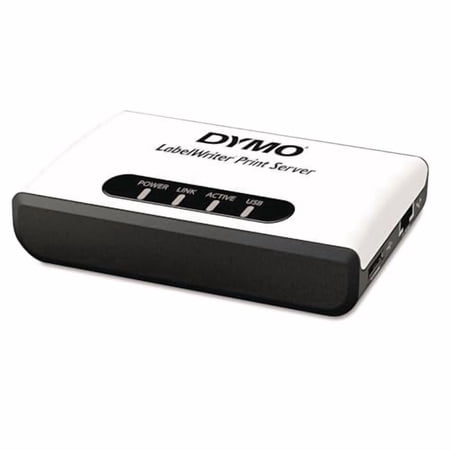
DYMO 1750630 LabelWriter Print Server RJ45 USB 2.0
- Brand:
- DYMO
- Model Number:
- 1750630
- UPC:
- 717010562830
- EAN:
- 0717010562830
- Walmart SKU:
- 23140200
| Price Type | Price | Date |
|---|---|---|
|
Highest Price
|
$208.80 | |
|
Lowest Price
|
$155.00 | |
|
Most Recent Price
|
$200.54 |
| Price Type | Price | Date |
|---|---|---|
|
Highest Price
|
$128.83 | |
|
Lowest Price
|
$128.83 | |
|
Most Recent Price
|
$128.83 |
Tracking History: We have tracked DYMO 1750630 LabelWriter Print Server RJ45 USB 2.0 since 12/5/2022. The most recent price update was on Dec 5, 2022.
Price Range: Over the past 90 days, the price has ranged from $128.83 (lowest on 12/5/2022) to $128.83 (highest on 12/5/2022). The average price during this period is $128.83.
Current Trend: No Walmart.com pricing data available for analysis.
Customer Insights: Rated 3.71/5 from 7 reviews.
We've needed something like this in our office for some time as we all have laptops and may not always be able to connect to the Dymo to allow it to be used. This makes our lives much easier! Set up was simple with the directions provided.
The print server got updated so that it works in large networks with multiple subnets! When you are setting a static IP you can now configure a default gateway as well. The firmware update for this is available on the support page if you happen to have an older unit. http://sites.dymo.com/Support/Pages/ProductDetails.aspx?ProductID=1750630%28DYMO%29
Sharing our Labelwriter Twin Turbo from a computer was always problematic when any changes to the sharing computer occurred. Also, the sharing computer always had to be powered on for the printer to be used by anyone else in the office. Setup and configuration of this LabelWriter Print Server was quick, easy and painless. I would highly recommend this for any office sharing a Labelwriter.
Just a note about setting the default gateway -- it can't be set from the application that installs from the CD but it can be set from the web interface.
Once you get the print server on your network & connect your DYMO LabelWriter, it should be smooth sailing. It should go without saying, but be sure to have the DYMO Label Software (or DYMO Connect for Desktop) already installed on any machine(s) you'll be using the DYMO printer with. I did want to point out a few things though. When you unbox the device, you'll find the MAC address listed on the bottom sticker. I would highly suggest creating a static IP for the print server via your router's management page (192.168.1.1 in my case), BEFORE connecting it to your network via Ethernet. Per the DYMO Print Server User Guide, by default, the static IP address for the print server is 192.168.1.100. Since that was already taken by another IP reservation on my network, I assigned 192.168.1.3 to my DYMO print server. Once that was done, I connected the print server to my LabelWriter & to my router, and plugged in the A/C adapter. Less than a minute later, all of the status lights had activity & I was able to navigate to 192.168.1.3 to access the DYMO LabelWriter Print Server web configuration page. I really didn't need to change any options here though, since setting the IP address is basically the bulk of the setup; I did modify the server Description field. Do yourself a favor and search Google for “Dymo Print Server User Guide” — the first result is what you're looking for — a PDF version of the setup guide. Avoid installing the Control Center software, as the same configuration can be done using the print server web UI (as outlined above). The only thing I used the guide for was to install the DYMO printer on my Windows machine(s), since the process was not as straightforward compared to Mac. Once on the network, the DYMO printer automatically shows up when you click on the + button on the Mac's Printers & Scanners window — I just changed the Name & Location fields when adding it, for clarity. However, on Windows, the DYMO will not be automatically detected, and must be added manually, by following the steps listed under the “Adding a Printer in Windows Vista” section of the DYMO Print Server User Guide; the Vista instructions still work in Windows 10. This is where having a static IP comes in handy — you'll be guaranteed that the DYMO Print Server will always have the same IP address, even after its DHCP lease expires. This ensures that your computers will always be able to “see” the printer on the network after it's been added. My server's been up & running since day 1 with no issues; works with both my Mac & Windows machines. Docking 1 star, given the not-so-clear setup process, and the outrageous price. I'm mostly bummed about Windows not automatically detecting the print server during the install step, unlike Mac. But overall, it's a set-it-and-forget-it kind of device. TL;DR — Install the DYMO Label Software (or DYMO Connect for Desktop) on any machine(s) you'll be using the DYMO printer with. Locate the MAC address of the DYMO LabelWriter Print Server (found on the bottom sticker of the device), and set a static IP address for the server on your network (doing this via your router, NOT the DYMO server itself, is preferable). Connect the DYMO LabelWriter Print Server to your DYMO printer via USB, to your router/modem via Ethernet, and connect the A/C adapter. Navigate to the DYMO LabelWriter Print Server web configuration page, using the IP address you just reserved — if it loads, it means it's been set up correctly — you do not necessarily need to change any options here. By default, the Administrator is “admin” as is the Password; unless you're on an Enterprise/office network, I wouldn't suggest changing this. Follow the instructions in the Dymo Print Server User Guide to add/install the printer on your computer(s) — refer to “Adding a Printer in Windows Vista” if you're using Windows 7 or 10.
Your user guide has a copyright of 2011. You must update the user guide to include instructions on how to use your product in a VDI environment.
This was purchased for a small department of a larger company. The company has several IP address ranges that are in use and unfortunately, per tech support, the device can only work on one subnet. This is strange as most devices allow you to enter a default gateway that would allow the device to be accessed by multiple subnets, but for whatever reason, this device does not. Needless to say, we will be returning it.
Detailed price history for the past 90 days
No Walmart.com pricing data available for analysis.
Third-Party Sellers prices have ranged from $200.54 (Jul 11) to $200.54 (Jul 11) over the past 90 days. Current price is close to the 90-day average of $200.54.
| Date | Price | Change | % Change |
|---|---|---|---|
| $200.54 | $+0.00 | +0.0% | |
| $200.54 | — | — |