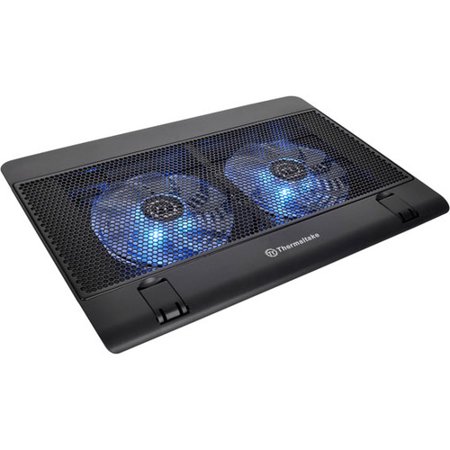
Thermaltake Notebook Cooler Massive 14²
- Brand:
- Absoke
- Model Number:
- CL-N001-PL14BU-A
- UPC:
- 841163051559
- EAN:
- 0841163051559
- ASIN:
- B00FPR8FLY
- Walmart SKU:
- 34405972
Market direction turned downward with current $43.99 representing 0.0% under standard pricing.
| Price Type | Price | Date |
|---|---|---|
|
Highest Price
|
$63.73 | |
|
Lowest Price
|
$46.39 | |
|
Most Recent Price
|
$56.71 |
| Price Type | Price | Date |
|---|---|---|
|
Highest Price
|
$49.98 | |
|
Lowest Price
|
$37.71 | |
|
Most Recent Price
|
$43.99 |
Tracking History: We have tracked Thermaltake Notebook Cooler Massive 14² since 1/9/2023. The most recent price update was on Nov 7, 2026.
Price Range: Over the past 90 days, the price has ranged from $37.71 (lowest on 2/8/2024) to $49.98 (highest on 1/9/2023). The average price during this period is $43.85.
Current Trend: Walmart.com prices have ranged from $43.99 (Nov 7) to $43.99 (Nov 7) over the past 90 days. Current price is close to the 90-day average of $43.99.
Customer Insights: Rated 4.7/5 from 114 reviews.
I have a 19" laptop and although this fan is a tad smaller it works great to keep my machine from overheating. The dial controls how high to set the fan on and there is a switch for the blue light (pretty retro), which I only use to remind me that it's still on. So I always turn the light on when I turn on the fan to remind me that it's all on. So when I turn off my laptop I'll remember to turn off the fan as well. If you don't shut it off it will continue to stay on because it is plugged into the computer, (runs while plugged in). Great laptop fan. I am happy with this purchase.
I read many comments about this one on here before I made a purchase and it's true! The two fans helps the wind circulate and my laptop never went heated or loud since I got it. The only problem with my fan is that there's some fan noise but not too much that it over powers my laptop sound. (I got 2 at the same time but only mine made weird sound)
My laptop is happy now with the new Thermal take massive laptop cooler. It works very well and is quiet operating. I sm very happy with my purchase.
Perfect size for 15.75 standard Laptop.It has adjustable fan speed,cool blue lighting,and is light as a feather.It is very quiet and cools EXTREMELY well.I use it on my lap quite a bit and although it does not have side intake vents,it does have 2 very large fan intakes underneath and I have had no airflow problems in actual use.It has 2 USB ports so you don't lose a port on your laptop,but keep in mind these are located on the left side facing near the recessed fan controls,so most convenient connection (with the supplied USB cable)is by having left side USB port(s)on your Laptop.I have 2 of these coolers now and simply could not find better for the unbeatable WalMart price and service!
It looks like a good fan & worked well for a whole week & a half. It died after that. I have tried 3 of these type fans over the yrs & they never last long, however, did not expect it to die in under 2 weeks! Returned to store for a refund & will not buy these type fans anymore..
I would recommend this laptop cooling pad to anybody who likes to use their laptop in bed, or on the couch, anyplace where there isn't a flat surface like a desk, and the vents could get blocked by bedding, clothing, cushions, etc. I would also recommend this cooling pad for anybody who wants to provide extra cooling to their laptop, to help the laptop fans run more silently, or to extend the life of their laptop. I would advise anybody who is having overheating issues with their laptop to first dust out their laptop with compressed air. If your laptop is more than a few years old, or you run the laptop in a particularly dusty environment, it might be time to do a deep-clean of your laptop. This entails taking the laptop apart to gain access to the fans and heatsinks. Over time, large dust balls can accumulate, even forming something similar to what you pull from the lint filter in your dryer. Obviously obstructions like these are going to insulate your laptop, making it difficult to cool. The laptop will need to be opened up in order to pull these out, especially if you've already tried compressed air with less than desirable results. This lint can eventually stop your fans from spinning if not removed on a regular basis. It can also cause your fans to fail prematurely. Do not be afraid of disassembling your laptop!! It's not that big of a project, and does not require any special skills or tools beyond just watching a video tutorial on youtube, and a small Phillips screwdriver. The typical procedure goes like this.. Remove the screws from the bottom of the laptop, remove the plastic piece above the keyboard if it is separate, remove the keyboard (usually there are tabs that you have to press in with a flathead screwdriver). Then you will remove any screws you can find that were under the keyboard and top plate. Now the bottom should separate from the top, and you should have easy access to the fans. You might need to unscrew the fans in order to clean the lint between the fans and the heatsinks. If you've dusted out your laptop, and done a deep cleaning, it might be time to re-paste your CPU and GPU, and apply new thermal pads. Generally this should be done at least once every 5 years. Again, you can find videos on youtube that will show you how, probably even a video that shows for your specific laptop model. Be careful not to misplace any screws, or mix them up. If you try to screw a long screw into a short hole, you might strip out the hole. If you try to put a short screw in a long hole, your laptop might not hold together as it should. To avoid doing this, mark each screw and screw hole as you take it apart. Silver and gold sharpies, or nail polish, white out, etc. Just don't use nail polish with glitter since this might conduct electricity and short out the motherboard if you use it to mark on the motherboard. You could also set up a camera to record you while you're taking it apart, then if you misplace a screw, you can re-watch the footage to help you figure it out.
I've only used the product for about a week but am very happy with it so far. It fits underneath my laptop perfectly and has a couple parts that pop out to elevate the stand, if you want to do so. There are also a couple parts that pop up on the front to hold the laptop in place if elevated. It feels very secure. Then the fans cover almost the entire bottom of the laptop with an easy dial to turn the fans on/off and also increase/decrease the speed of the fans. There's also a button to turn on the blue led lights which give it a nice look. Really nice product!
I've used three other cooling pads for my laptop, but with all of them I still suffered with the computer shutting down from temperaures. I decided to give this unit a try after reading great reviews online.. SO far the computer hasn't powered off once. The dual fans keep plenty of air moving and keep the laptop cool. I can feel a difference when I put my hand near the exhaust vents on the side of the computer. With the other coolers, the air was extremely hot, but with this Thermaltake the air coming out of the vents never get more than warm. I would recommend this cooler to anyone who has overheating issues with thier laptop. This cooler has blue LCD lights which look cool, but I don't use them. The fans have a variable speed control, and once the unit is pluggered in there is an extra USB port for convenience. All in all this is the best laptop cooler I've used and worth much more than it's cost.
Not much to say, it's a great cooler, at not too bad of a price. The LED lights are kinda pointless, but oh well. Only thing I wish it had is a small light indicating that it is on/running. It's so quiet, you have to check to make sure it is actually on.
works great! Haven't had any problems with it yet. Although if you are wearing shorts, the edges are rough and hard plastic. I just put something on my lap to keep from getting scratches. The fan speeds are adjustable, and they do put out some air. I think this was worth the price.
Detailed price history for the past 90 days
Walmart.com prices have ranged from $43.99 (Nov 7) to $43.99 (Nov 7) over the past 90 days. Current price is close to the 90-day average of $43.99.
| Date | Price | Change | % Change |
|---|---|---|---|
| $43.99 | $+0.00 | +0.0% | |
| $43.99 | $+0.00 | +0.0% | |
| $43.99 | $+0.00 | +0.0% | |
| $43.99 | $+0.00 | +0.0% | |
| $43.99 | $+0.00 | +0.0% | |
| $43.99 | $+0.00 | +0.0% | |
| $43.99 | $+0.00 | +0.0% | |
| $43.99 | $+0.00 | +0.0% | |
| $43.99 | — | — |